Sculpting by hand
Manual retouching on top of what the generator produced. Entering this tab switches the view to topography and selects the brush.
The influence you paint is stored separately from the noise. You can go back to the Terrain panel, change the seed, regenerate — your edits stay where you put them.
Paint
Open by default.
Brush mode
In Biome and Topo views the brush always writes a discrete value — a biome identifier or an elevation band — so there is no mode to choose. The panel says so rather than offering a control that would be ignored.
In the elevation views the mode picker appears:
| Mode | Effect |
|---|---|
| Raise | Adds elevation |
| Lower | Removes it |
| Set | Writes the target value directly |
Target
A list of colour swatches, one per target. Which list depends on the active view:
- Topo view → the nine strata, from Abyssal to High peaks
- Biome view → every enabled biome
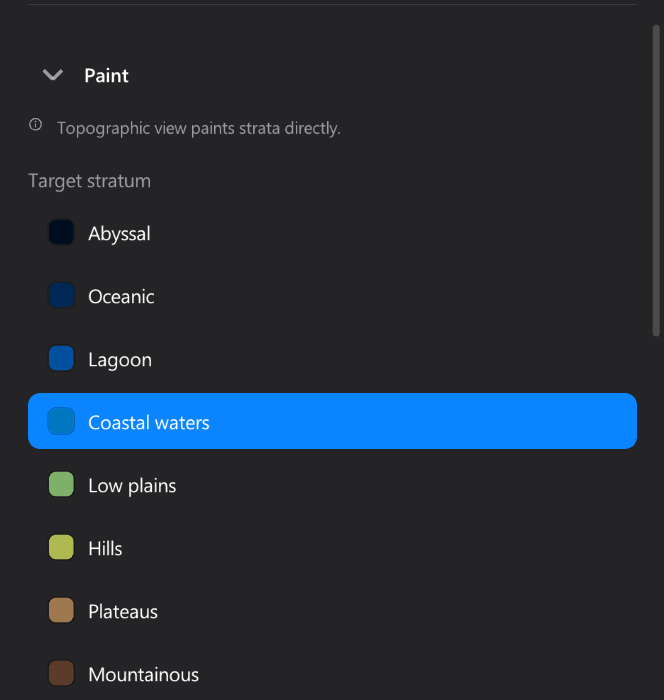
Click a row to select it. That is what the brush will paint.
Eraser
Available in the derived views. Removes painted influence instead of adding any, returning those pixels to what the generator produced.
Brush
Open by default.
| Control | Range | Notes |
|---|---|---|
| Shape | Circle / Square / Line | |
| Size | 3 – 1000 | Diameter, matching the on-screen reticle |
| Strength | 0.1 – 2 | How hard one pass hits |
| Falloff | 0 – 10 | Edge softness. 0 = hard edge |
| Noise strength | 0 – 1 | Breaks the stroke up so it does not read as a stamp |
| Noise scale | 0.1 – 10 | Grain of that break-up |
| Rotation | 0 – 360° | For Square and Line |
| Edge mask | 0 – 1 | Fades the stroke toward the map borders |
In Biome view falloff is forced to 0: painting a biome writes a discrete identifier, so a soft edge would have no meaning.
Without leaving the canvas
| Shortcut | Adjusts |
|---|---|
Ctrl + scroll | Size |
Alt + scroll | Falloff — up for softer |
Ctrl+Alt + scroll | Rotation, 5° per step |
The reticle under the pointer shows size, shape and falloff radius live.
Allowed strata
Collapsed by default. Biome view, with a biome selected.
Each biome may only occupy certain elevation bands. Snow and Rocky Wastes are limited to the three highest, Swamp to the low and coastal ones, Deep Ocean to the abyssal band alone.
Turn a band off to stop this biome painting there. Turn one on to allow what the defaults did not — jungle at altitude, desert on a plateau.
Stencil
Collapsed by default.
Load an image and use it as a reference or as a source of terrain.
Choose image… opens the file browser, which starts in the application folder.
| Control | Range | Effect |
|---|---|---|
| Show overlay | on/off | Draw it over the map |
| Opacity | 0 – 1 | How strongly |
| Tolerance | 0 – 255 | Colour-matching slack for fill operations |
| Outline | 0 – 10 | Thickness of the traced outline |
Interaction modes
| Mode | Effect |
|---|---|
| View | Reference only. The brush works normally |
| Edit | Clicks edit the stencil image itself |
| Fill | Clicks flood-fill terrain from the stencil's colour regions |
While Edit or Fill is active the sculpt tools are paused, and the panel says so.
A stencil is something you work from — a reference to trace. A mask is something the generator works with: it replaces a shape outright. See Masks.
Province editing
Collapsed by default. Requires provinces.
Edit province boundaries by hand. Press Enable edit mode; the view switches to provinces.
| Input | Effect |
|---|---|
| Left-click | Paints the selected province into those pixels |
| Right-click | Picks the province under the pointer |
| Control | Notes |
|---|---|
| Overlay opacity | How strongly province colours show over the terrain |
| Create new province | Allocates a fresh ID to paint with |
| Apply new province | Rebuilds the adjacency graph and relinks the hierarchy |
Painting changes the pixel map immediately, but adjacency and the hierarchy are only recomputed when you ask. Exporting without applying produces stale adjacency data.
The same tools are reachable from the Provinces panel: the brush button in its action bar brings you straight here with edit mode already on.
Options
Collapsed by default.
| Control | Effect |
|---|---|
| Auto-regenerate | Re-runs generation shortly after an edit |
| Delay (s) | 0.1 – 3. How long to wait |
| Paint overlay | Shows painted influence as a layer |
| Undo / Redo | The same history as Ctrl+Z / Ctrl+Y and the toolbar |
Auto-regenerate is off by default. On a large map each regeneration is seconds of work, and having it fire while you are still painting is rarely what you want.