Masks
Masks let you drive the world from images instead of from noise. Draw a coastline in a paint program, import it, and the generator uses your shape rather than the one it would have produced.
Two independent systems live here:
| System | Replaces | Granularity |
|---|---|---|
| Stratum overrides | The shape of one elevation band | One image per band, 9 bands |
| Biome layers | Biome assignment | An ordered stack, one biome per layer |
Stratum overrides
Open by default.
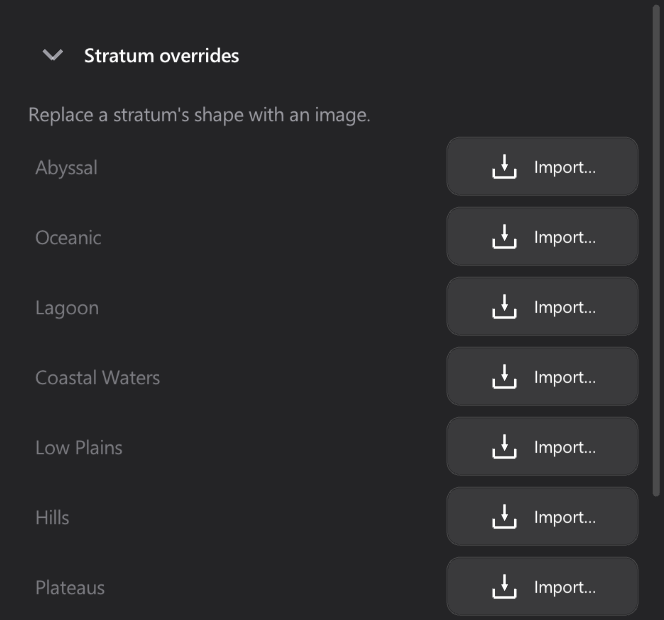
Replaces a stratum's shape with an image. One row per elevation band:
| State | The row shows |
|---|---|
| Empty | The band name, dimmed, and an Import… button |
| Loaded | The name, a switch, and Clear |
The switch enables or disables an override without unloading it, so you can compare with and without. Clear removes it entirely.
What the image should look like
Greyscale, or any image that reads light/dark. Bright pixels are inside the band, dark ones outside. Anti-aliased edges are fine.
Aspect ratio is handled by the import settings below.
Biome layers
Open by default.
An ordered stack. Each layer carries an image and a target biome, and layers above paint over layers below — the same model as layers in a paint program.
Each row shows the layer name, an arrow to its target biome, and:
| Control | Effect |
|---|---|
| Switch | Show or hide this layer |
| ▲ / ▼ | Move it in the stack |
| 🗑 | Remove it |
A hidden layer's name is dimmed.
Regenerate biomes from masks re-runs biome assignment with the current stack.
Import a biome mask
Collapsed by default.
One button per enabled biome. Pressing one opens the file browser; the image you choose becomes a new layer painting that biome.
The buttons carry an ellipsis — Forest… — because they open a browser rather than acting immediately.
Import and export
Collapsed by default.
Aspect ratio
Strategy maps are usually 2:1; images are often square. Two settings reconcile them:
| Setting | Effect |
|---|---|
| Pad exports to square | Writes a 2:1 map into a 1:1 image, padding rather than stretching |
| Crop square imports | Takes the top 2:1 band of a square image instead of squashing it |
Turn both on if you round-trip through a tool that insists on square textures. Turn both off if your images already match the map's aspect ratio.
Export all masks
Writes every mask the world holds into Export/Masks/:
- one greyscale PNG per biome present in the map
- one greyscale PNG per stratum present in the map
That is the outbound half of the round trip.
Clear all masks
Removes every override and every layer. Destructive, and presented as such.
Applying changes
Mask edits do not take effect until the world is regenerated. When something is pending, a warning appears at the bottom of the panel with an Apply changes button that regenerates with the masks in place.
A typical round trip
- Generate a world you are broadly happy with.
- Export all masks to
Export/Masks/. - Open
Low Plains.pngin a paint program and redraw the coastline. - Back in Stratum overrides, Import… on Low Plains and pick your file.
- Apply changes.
The rest of the world — every other band, the biomes, the provinces — regenerates around your hand-drawn shape.
Masks and saves
Masks are stored inside the .wgen. Saving a world saves its overrides and its layer stack, images included: a saved world does not depend on the PNGs still being on disk.
See also
- Sculpt → Stencil — the other way to work from an image, tracing rather than replacing
- Export