Preparing your first world
Goal — Walk the whole pipeline once, at a small resolution, to see every stage before committing to a full-size map.
Duration — 10 minutes.
Prerequisites — Installation: the application starts and the map is drawn.
Part 1 — Find a world
The application opens on the Terrain panel, with a world already generated.

Press the dice button, to the right of Generate map, to roll a new seed and regenerate. Keep going until a coastline appeals to you.
It stays put wherever you are in the panel. You can change a setting at the very bottom and apply it without scrolling back up.
Keep the seed
Open the Seed group, type a name into Name this world, then Keep.
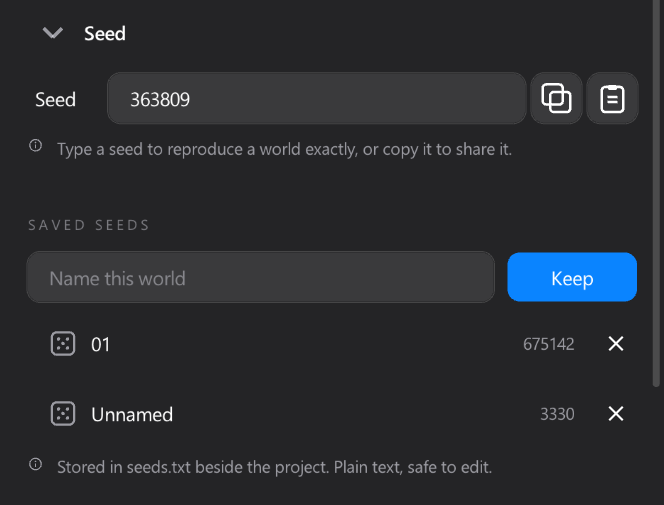
The seed goes onto the shelf and into seeds.txt. You will be able to come back to exactly this world later.
Part 2 — Shape the terrain
Open the Noise group and try these, pressing Generate map after each change:
| Setting | Effect |
|---|---|
| Scale | Low = few large landmasses; high = archipelago |
| Octaves | Detail. 3 is smooth and rounded, 8 is craggy |
| Sea level | Raise it to drown the map, lower it to expose the seabed |
| Edge mask | Fades the map toward its borders, so continents do not run off the frame |
Then open Shaping and switch on Warped coastlines. Fractal noise alone makes rounded blobs; displacing it before sampling gives inlets, peninsulas and fjords.
Part 3 — Choose the resolution
Open the Resolution group. For this walkthrough stay on 1080p: generation takes seconds instead of minutes, and every stage below behaves identically.
The note under the presets says what that size costs in memory. Come back to Archway (8129 × 4065) once you know the settings you want.
Part 4 — Paint by hand
Switch to the Sculpt tab, the brush icon.
The view switcher at the top of the panel decides what the map shows. In Topo view the brush paints elevation bands directly:
- Open Paint and choose a target stratum — Mountainous, say.
- Open Brush and set a Size you can see on screen.
- Click and drag on the map.
Useful while painting, without leaving the canvas:
| Shortcut | Effect |
|---|---|
Ctrl + scroll | Brush size |
Alt + scroll | Falloff — up for softer |
Ctrl+Alt + scroll | Rotation |
| Scroll | Zoom |
| Middle-drag | Pan |
Ctrl+Z | Undo |
Painted influence is kept when the underlying noise is regenerated. You can go back to Terrain, change the seed, and your mountains stay put.
Part 5 — Cut into provinces
Switch to the Provinces tab.
- Open Counts and set Land target to something modest — 800 for a first run.
- Press Generate provinces in the pinned bar.
The view switches to provinces automatically, each with its own colour.
If the result is too regular, open Irregularity and raise Land chaos. If mountains should be more finely cut than plains, open Density per stratum and raise the multiplier for the high bands.
Part 6 — Group into territories
Switch to the Hierarchy tab.
- Open Build, press New territory level.
- Name it — Counties — and leave Built from on Provinces.
- Create level. Grouping runs on its own.
Do it again for the next tier: create Duchies, but this time choose Counties as the source. Each level groups the one below.
Min size and Max size decide how many source units go into each territory. To assign one by hand: select a level, switch on Paint mode in the Selected territory group, left-click a territory to select it, then right-click the provinces to pour into it.
Part 7 — Export
Switch to the Export tab and press Export all maps in the pinned bar.
Everything lands in an Export/ folder next to the executable:
| File | Contents |
|---|---|
heightmap.png | Elevation as 16-bit greyscale |
heightmap.raw | The same data as 16-bit RAW |
normalmap.png | Derived from the final heightmap |
provinces.png | Province colour map |
definition.csv | ID ↔ colour table |
adjacencies.csv | Which provinces touch which |
Counties.csv, Duchies.csv, … | One per hierarchy level |
Before exporting, the Heightmap group is worth a look. Stratum slope at 0 keeps hard terraces — best if you are going to edit the heightmap afterwards. Raising it bevels the boundaries between bands, which reads better dropped straight into an engine.
Part 8 — Save
Ctrl+S writes the world into saves/. The document name at the top of the window stops saying Untitled.
A .wgen holds everything: terrain, painted influence, provinces, the full hierarchy, masks and stencil. Reopening it puts you exactly where you left off.
Next
| You want to… | Read |
|---|---|
| Understand every terrain setting | Terrain |
| Get more out of the brush | Sculpt |
| Drive the terrain from an image | Masks |
| Know what each exported file contains | Export |
| Work without the mouse | Shortcuts |