The interface
The window is three regions: a toolbar across the top, a panel on the left, the map filling the rest.
The title bar
Drawn by Windows, but tinted to the application's colours: the window reads as one surface, not as a dark tool under a light strip. On Windows 10 it falls back to the system dark caption.
The toolbar

| Control | Shortcut | Notes |
|---|---|---|
| New world | — | Asks for confirmation if the current world has unsaved changes |
| Open… | — | Opens a sheet listing the contents of saves/ |
| Save | Ctrl+S | Saves in place; asks for a name the first time |
| Save as… | — | Always asks for a name |
| Undo | Ctrl+Z (or Ctrl+W) | One history, map and hierarchy alike |
| Redo | Ctrl+Y |
The centre shows the document name and the resolution. The right shows a spinner and Generating while a background job runs.
New, Open, Undo and Redo take an exclusive lock on the world. During a generation or a preview rebuild they are disabled rather than left to freeze the window. The capsule in the bottom-right corner says what is being recomputed.
The panel
The tabs

| Panel | Role |
|---|---|
| Terrain | Noise, projection and world size |
| Sculpt | Paint elevation and biomes by hand |
| Provinces | Subdivide the map |
| Hierarchy | Group provinces into territories |
| Masks | Import and export mask layers |
| Export | Write maps and tables to disk |
| Settings | Interface size and shortcuts |
Switching tabs has side effects, deliberately: entering Sculpt switches the view to topography and selects the brush; entering Hierarchy selects the highest level and shows it.
The view switcher
Just below the panel title, and pinned — it does not scroll.
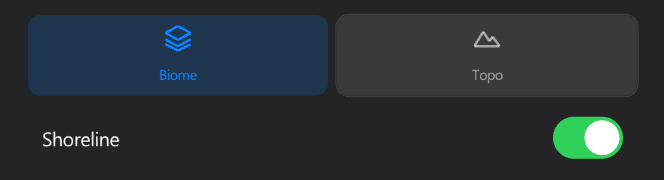
| View | Shows | Available |
|---|---|---|
| Biome | Ecological colouring | Always |
| Topo | The nine elevation bands | Always |
| Provinces | One distinct colour per province | Once provinces exist |
| Territories | The hierarchy levels | Once a level exists |
Views with no data behind them are hidden rather than shown disabled.
Switching view is not decorative: the brush paints into whatever the current view represents. In Biome it writes biome identifiers; in Topo, strata.
Pinned overlays
Ctrl+click a view button to pin that view as a translucent layer on top of the current one. An amber dot appears on the pinned button.
That is how you check one layer against another — province boundaries over topography, territory borders over biomes.
Two controls then appear: Overlay opacity and Remove overlay. Ctrl+clicking again removes the layer.
Collapsible groups
Panel content is organised into groups you can fold away. The one or two groups a panel exists for open straight away; the rest start closed.
- Click the header, anywhere along the strip, to open or close it.
- Groups remember their state for the session.
- Headers are keyboard-reachable:
Tabto one,SpaceorEnterto toggle it.
The action bar

Terrain, Provinces and Export each have a bar fixed at the bottom of the panel carrying the primary action. It never scrolls away.
| Panel | Primary action | Secondary |
|---|---|---|
| Terrain | Generate map | New seed, then generate |
| Provinces | Generate provinces | Edit provinces by hand |
| Export | Export all maps | — |
Resizing
Drag the divider between the panel and the map. The cursor becomes a horizontal double arrow over it.
The map
| Input | Action |
|---|---|
| Scroll | Zoom, centred on the pointer. Range 10 % – 5000 % |
| Middle-drag | Pan |
| Left-click | Paint, or select — depends on the active tool |
| Right-click | Pick, or stop painting |
While the Sculpt tab is open, a reticle follows the pointer showing the brush's size, shape and falloff.
Modal sheets
Save, Open and the two file browsers appear as sheets over a dimmed window. While a sheet is open, everything behind it still draws but ignores the pointer.
Escape closes a sheet. It does not quit the application.
Notifications
| Element | Where | What |
|---|---|---|
| Toast | Bottom of the map | Transient confirmation — Seed 4125 copied |
| Capsule | Bottom right | Names what is being recomputed in the background |
| Progress card | Centre | Long generations, with a percentage |
| Tooltip | Under the pointer | After a short dwell on an icon button |
The nine strata
| # | Stratum | Reads as |
|---|---|---|
| 0 | Abyssal | Near-black blue |
| 1 | Oceanic | Deep blue |
| 2 | Lagoon | Mid blue |
| 3 | Coastal waters | Bright blue — the last water band |
| 4 | Low plains | Green |
| 5 | Hills | Yellow-green |
| 6 | Plateaus | Light brown |
| 7 | Mountainous | Dark brown |
| 8 | High peaks | White |
Sea level sits between Coastal waters and Low plains.
The sixteen biomes
| Land | Water |
|---|---|
| Grassland, Forest, Jungle | Coastal Waters |
| Rocky Wastes, Savanna, Desert | High Seas |
| Snow, Swamp, Tundra, Alpine | Deep Ocean, River, Lake |
Biomes are constrained by elevation: Snow and Rocky Wastes to the three highest bands, Swamp to the low and coastal ones, Deep Ocean to the abyssal band alone. Those constraints are edited in Sculpt → Allowed strata.
Interface size
| Shortcut | Effect |
|---|---|
Ctrl + | Increase by 25 % |
Ctrl - | Decrease by 25 % |
Ctrl 0 | Match the display's own scaling |
The shortcuts clamp at 75 % and 300 %. Settings → Interface size offers presets across the useful middle of that range, 100 % to 200 %, plus a Match the display button. The choice persists in ui_scale.cfg.